IPTV With a VPN: Which Server to Choose & Fixing Common Problems
A VPN changes the IP address your provider sees. That’s the whole point — but it’s also why streams sometimes stop the moment you connect. Here’s how to set it up so it actually works. (For why you might want a VPN in the first place, see Can your ISP block or see your IPTV? — this guide is the practical “how”.)
What actually changes when you turn the VPN on
Only one thing: your visible IP address. Your subscription, your playlist link and your app settings are untouched. That single change has three side effects:
- Your traffic takes a longer route, so latency goes up.
- Your provider sees a different country, which can change which streams respond.
- Switching IPs repeatedly can trigger a temporary line lock (see below).
Do you need to change your M3U or Xtream link?
No. This is the most common misunderstanding. Your M3U URL or Xtream Codes login stays identical with the VPN on or off — it’s tied to your account, not your location. If someone tells you to “use a different link for VPN”, be sceptical. Not sure what these are? Read What is an M3U playlist?
What can change is whether the portal responds. Some networks restrict access by region, so a badly chosen server can make the same link fail.
Which VPN server should you choose?
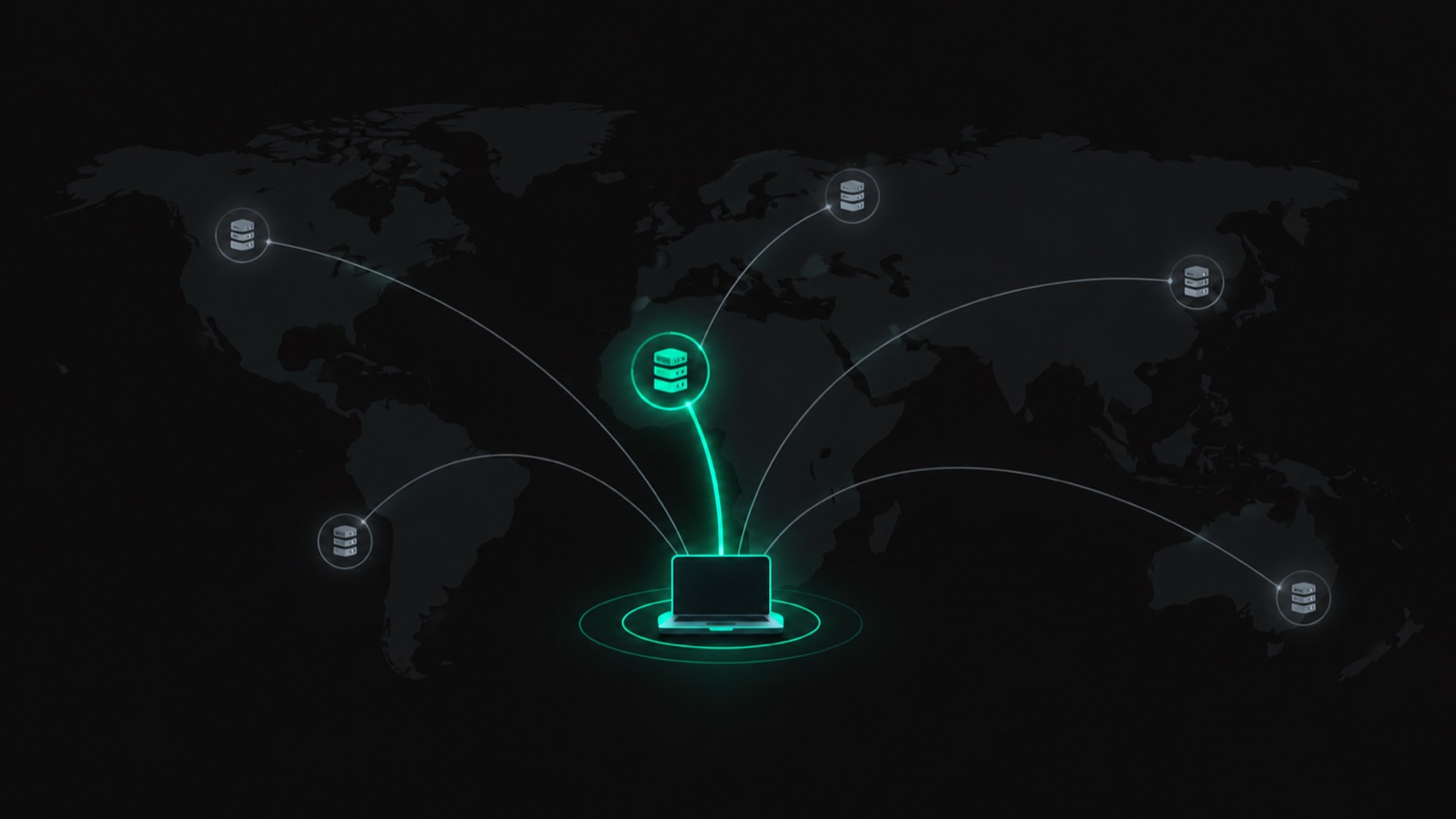
The instinct is to pick an exotic country. That’s usually the wrong move.
| Server choice | Result |
|---|---|
| Nearest city in your own country | ✅ Best — lowest latency, smoothest 4K |
| Neighbouring country | ✅ Good fallback if your ISP throttles |
| Different continent | ❌ High latency, buffering, quality drops |
| Overloaded “free” server | ❌ Severe speed loss |
Rule of thumb: closest server that solves your problem. Every extra thousand kilometres costs you bandwidth, and 4K needs at least 25 Mbps.
⚠️ The line lock trap
Many providers allow a limited number of simultaneous connections and watch for unusual IP behaviour. If you hop between VPN countries several times in a few minutes, the system can read that as account sharing and temporarily lock your line. Pick one server and stay on it. If you do get locked, wait a few minutes or contact support — it’s almost always temporary.
Streams stopped working after connecting — fix it in order
- Switch to a nearby server. Fixes the majority of cases.
- Change the VPN protocol. WireGuard is usually much faster than OpenVPN for streaming.
- Restart the player app so it reconnects with the new IP.
- Disable the VPN briefly to confirm whether the VPN is really the cause.
- Turn off extra features — ad blockers, double VPN and obfuscation all cost speed.
- Still buffering? Work through our 9 buffering fixes.
Split tunnelling: the smart setup
Split tunnelling lets you route only your player app through the VPN while everything else uses your normal connection. You get protection where it matters without slowing the rest of the household. Most good VPN apps on Android and Fire TV support it.
Router VPN vs device VPN
Installing the VPN on your router covers every device, including smart TVs that can’t run VPN apps — but you lose per-app control and it’s harder to switch servers. Installing it on the device (Firestick, Android box, phone) is more flexible and lets you use split tunnelling. For most people, device-level wins. See our streaming device guide.
Bottom line
Keep your existing link, pick the closest server, use WireGuard, and don’t hop between countries. Do that and a VPN costs you almost no speed. Want to test your setup on a real service? Start a free trial.
Ready to try IPTV now?
20,000+ channels, 60,000+ movies & series, instant activation.
View IPTV plans