How to Fix IPTV Buffering: 9 Proven Fixes That Actually Work

Quick answer
To fix IPTV buffering: test your internet speed (aim for 25 Mbps for 4K), use a wired connection or move closer to the router, restart your router and device, switch the app decoder (Hardware/ExoPlayer), lower the stream quality, and disable your VPN. If every channel buffers on a fast line, the provider's servers are the cause.
Few things are more frustrating than settling in for the big match and watching the picture freeze on a loading spinner. If your IPTV keeps buffering, the good news is that most of the time the cause is something you can fix yourself in a few minutes. Here are nine proven fixes, in the order we recommend trying them.
Why does IPTV buffer in the first place?
Buffering happens when the video arrives more slowly than it plays, so the app pauses to “buffer” more data. That gap is almost always caused by one of three things: your internet connection (speed or Wi-Fi), your device or app settings, or the provider’s server. Work through the list below and you will usually pinpoint it quickly.
1. Test your internet speed
Run a quick speed test on the same device you watch on. Aim for at least 15 Mbps for HD and 25 Mbps or more for 4K. If you are well below that, the fix is your connection, not the service.
2. Use a wired connection or move closer to the router
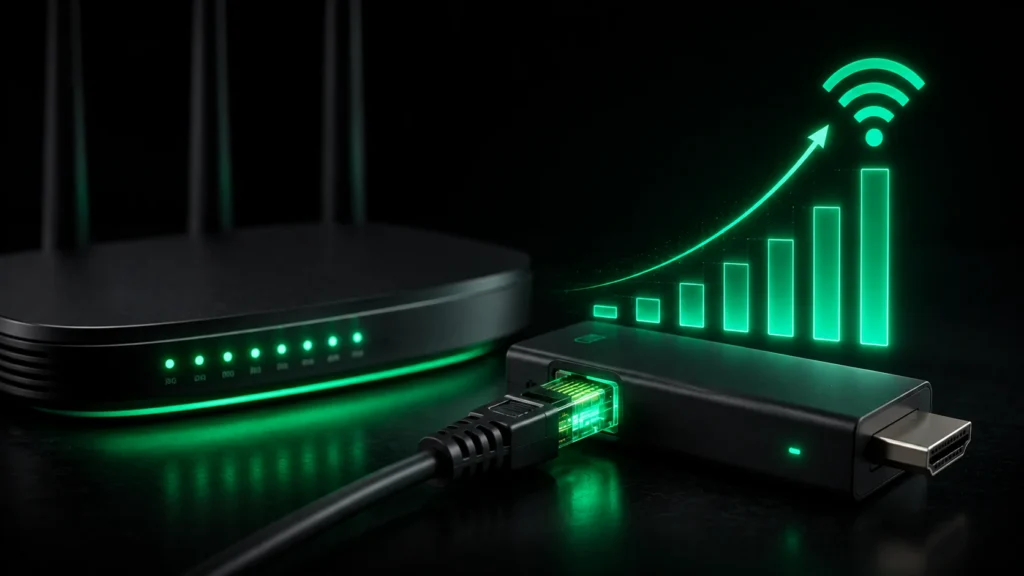
Wi-Fi is the number-one cause of buffering. If you can, connect your box or Firestick by Ethernet (an adapter works). If not, move the device closer to the router, or add a mesh point — thick walls and distance cripple streaming.
3. Restart your router and device
It sounds obvious, but a router that has been on for weeks gets congested. Power it off for 30 seconds, restart it, then restart your streaming device too. This single step fixes a surprising number of freezing issues.
4. Switch the app’s video decoder
In most players (IPTV Smarters, TiviMate, XCIPTV) you can change the decoder in settings. If you are on the default and it stutters, switch to Hardware or ExoPlayer (or vice-versa). One usually runs far smoother on your particular device.
5. Lower the stream quality
If your connection is marginal, watch the Full HD version of a channel instead of 4K. Many IPTV lists include both — HD needs far less bandwidth and will play smoothly where 4K cannot.
6. Turn off (or change) your VPN
A VPN adds distance and can throttle your speed. If you use one, try turning it off to see if buffering stops. If you need a VPN, choose a nearby, fast server rather than one on the other side of the world.
7. Close background apps and clear the cache
Other apps downloading or updating in the background steal bandwidth. Close them, and clear your IPTV app’s cache in the device settings to remove stale data that can cause stutter.
8. Check whether other devices are hogging bandwidth
If someone else in the house is streaming, gaming or downloading, that eats into your speed. Test at a quiet time, or upgrade your broadband if several people stream 4K at once.
9. When it’s the provider, not you
If a single channel freezes while everything else is perfect, that is usually temporary stream maintenance on the provider side — a good service will switch you to a backup feed. But if every channel buffers on a fast, wired connection, the provider’s servers simply cannot cope. That is the real difference between cheap lists and a premium IPTV service with anti-freeze servers and high uptime. The best way to judge is to test on your own setup with a free trial, or read our tips for IPTV on Firestick.
Tired of buffering? Switch to a stable IPTV subscription built on anti-freeze servers and enjoy smooth 4K, even during live sport.
Ready to try IPTV now?
20,000+ channels, 60,000+ movies & series, instant activation.
View IPTV plans