How to Install IPTV on Smart TV (Samsung & LG) — 2026 Guide
Quick answer
To install IPTV on a Samsung or LG Smart TV: install a supported app (Smart IPTV, IBO Player or IPTV Smarters) from the TV app store, note the app MAC address, upload your M3U playlist to the app website (or send us the MAC), then restart the app to load your channels. No extra box needed.
One of the best things about a modern Smart TV is that you can watch IPTV directly on it — no Firestick, no Android box, no extra hardware. If you have a Samsung (Tizen) or LG (webOS) television, you can be up and running in a few minutes. Here is exactly how to install IPTV on your Smart TV, step by step.
What you need before you start
You need three things: a Samsung or LG Smart TV connected to the internet; a stable connection (around 15 Mbps for HD, 25 Mbps or more for 4K); and an active IPTV subscription. After you order, we send your playlist details (an M3U URL or Xtream Codes login) by email, usually within minutes.
Step 1 — Install a compatible IPTV app
From your TV’s app store (the Samsung App Store on Tizen or the LG Content Store on webOS), search for and install a supported player. The most popular are Smart IPTV (SIPTV), IBO Player and IPTV Smarters. All three run natively on Smart TVs with no extra hardware.
Step 2 — Find your app’s MAC address
Some apps (like Smart IPTV and IBO Player) work by linking your playlist to your TV’s unique MAC address. Open the app and it will display a MAC address on screen — note it down. You will either enter it on the app’s activation website or send it to us so we can load your playlist remotely.
Step 3 — Load your playlist
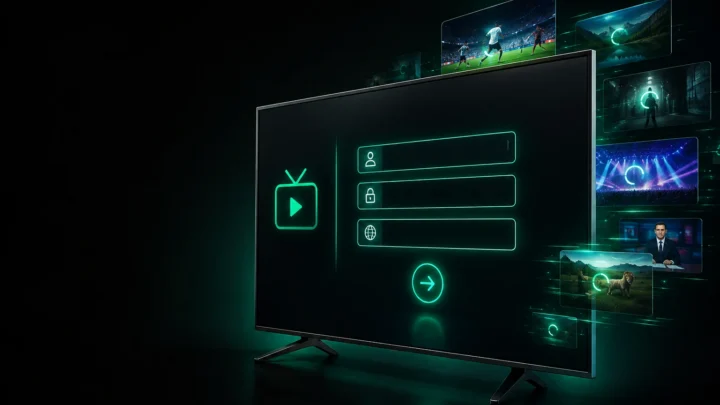
There are two common methods depending on the app. With Smart IPTV / IBO Player, you upload your M3U link to the app’s activation page using the MAC address, or simply send us the MAC and we do it for you. With IPTV Smarters, you open the app and choose “Login with Xtream Codes API”, then enter the username, password and server URL from your welcome email exactly as shown.
Step 4 — Let your channels load
Once the playlist is linked, restart the app. Your channels, movies, series and the TV guide (EPG) will load automatically — this takes about thirty seconds the first time. You are ready to watch. For a device-specific overview, see our IPTV on Smart TV page.
Samsung vs LG: any differences?
The process is nearly identical. On Samsung (Tizen) and LG (webOS), both run Smart IPTV and IBO Player natively. The only real difference is the app store you install from. Both handle Full HD easily, and recent 4K models handle UHD streams well on a fast connection.
Troubleshooting common issues
If channels do not appear, double-check that the MAC address was entered correctly and that your playlist link is active. If a stream buffers, test your internet speed and prefer a wired connection or a strong Wi-Fi signal — see our full guide on fixing IPTV buffering. Still stuck? Our 24/7 support can load your playlist and configure everything for you, free of charge. You can also browse recommended players on our IPTV apps page or follow the full setup guide.
Ready to watch on your Smart TV? Get your IPTV subscription and stream 20,000+ channels in 4K — no extra box required.
Ready to try IPTV now?
20,000+ channels, 60,000+ movies & series, instant activation.
View IPTV plans